Human in the loop: let AI draft the change, keep the decision
Where the approval step belongs when AI edits your work: preview the real change, apply it on purpose, keep a way back, and watch multi-step work run.
"Human in the loop" means an AI can do the drafting, but a person decides what actually changes. The useful question is not whether to keep a human in the loop, but where the approval step goes. Put it in the wrong place and you either click "approve" all day without reading, or you stop using the AI altogether.
This guide sets out five rules for placing that step well: let AI draft freely, preview the real change, choose carefully between approving one change at a time and approving a batch, always keep a way back, and give multi-step work a visible run with a Stop button. At the end there is a simple template for writing approval rules of your own. We use PlexiDesk as the worked example throughout, but the rules apply to any tool.
Drafting and deciding are different jobs
AI is quick at producing options: a rewrite, a list of tasks, a table, a reply. Producing a draft changes nothing, so it needs no approval. Deciding is different. A change to a shared document, a booked meeting or a sent message has consequences, and you're the one who owns them.
So separate the two jobs. Let the AI draft as much as you like, and put the approval exactly where a draft becomes a change.
The approval has to be a real decision, not a reflex. The US National Institute of Standards and Technology warns about the opposite habit in its Generative AI Profile (opens in a new tab): over time, people "may over-rely on GAI [generative AI] systems or may unjustifiably perceive GAI content to be of higher quality than that produced by other sources", which it calls "an example of automation bias, or excessive deference to automated systems." An approval step you click through without looking doesn't protect you from anything. The rest of this guide is about making each approval quick enough to do properly.
This split, where AI drafts and you decide, is the rule behind how Plexii proposes changes.
Preview the real change, not a description of it
"I've updated the table with the new prices" is a description. The table with the new prices in it is the change. Approve the second, never the first. A description can be accurate about what was intended and still wrong about what was done.
Look for tools that show you the change itself before it lands, and ask for it when they don't. Here is how PlexiDesk does it in four places:
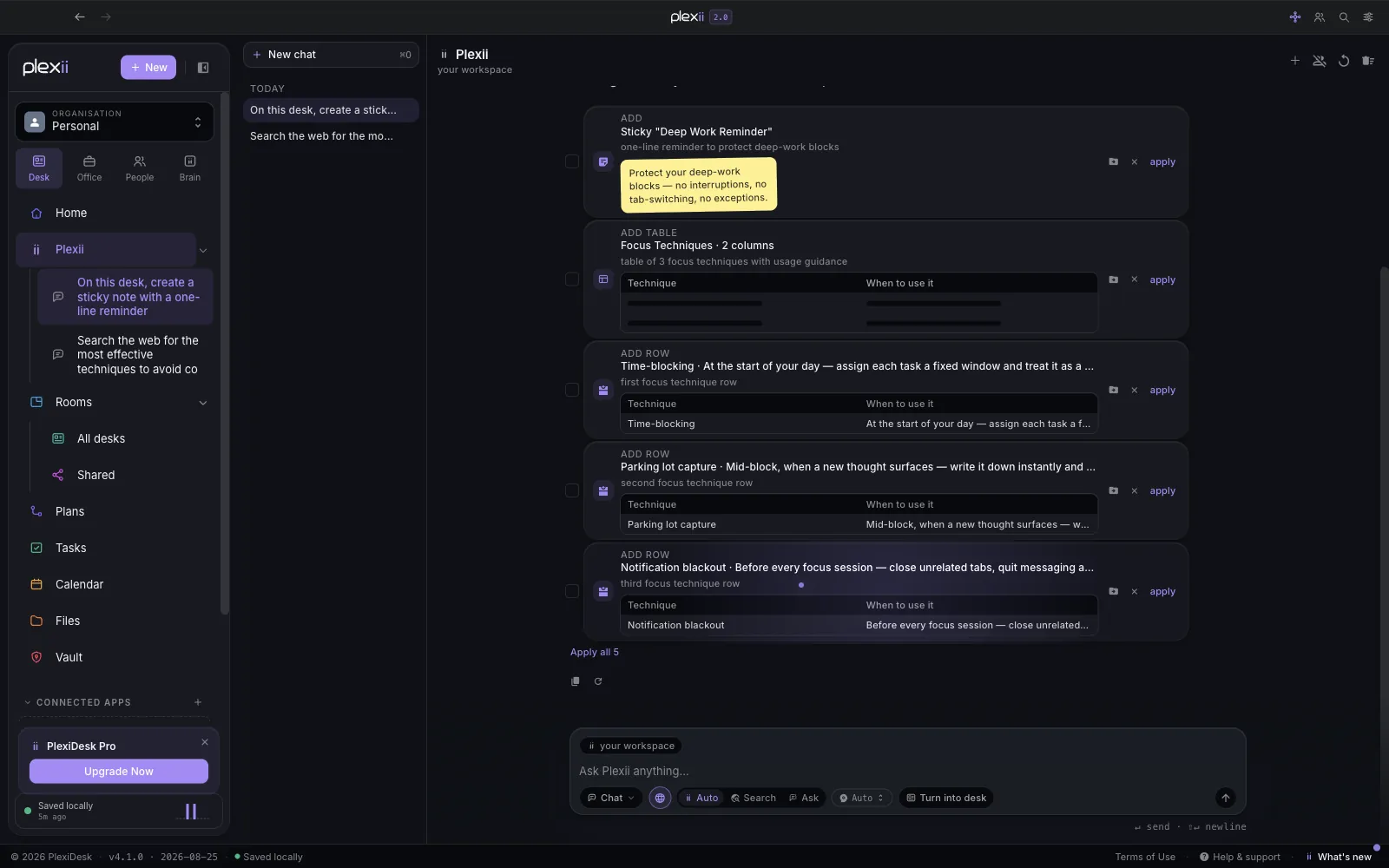
- Plexii's proposals. When you ask Plexii, the assistant, to do something, it proposes the change as a card: a table, a task, a calendar block or a whole document. Each card shows a preview of the change, and at the default setting (more on that below) nothing on your desks changes until you apply it. See Meet Plexii, your assistant.
- AI Assist. Select some text in a widget, right-click and choose AI Assist to rewrite, summarise or translate it. You see the result first, along with the exact instruction the AI was given, and only Apply changes your widget. See AI Assist: rewrite, summarise and translate text.
- A widget's own AI. The sparkle on a widget's title bar drafts in that widget's own terms, such as to-dos for a sticky or branches for a mind map. In a list of suggestions every item starts ticked, you untick what you don't want, and it changes only that widget, and only after you approve. See Use a widget's AI button.
- Voice. Press and hold the Plexii button and say what you want. Your words appear in the box so you can check them, and nothing is sent until you press Enter. Plexii then returns proposals as cards you apply or dismiss.
One at a time, or all at once?
Approving a batch of changes in one click saves time, and it is the right choice for some changes and the wrong one for others. A simple rule:
- Approve as a batch when every change is internal, low-stakes and easy to undo: tidying a layout, adding notes, filling in a table you'll check anyway.
- Approve one at a time when a change leaves your hands or is hard to take back: sending an email or a message, inviting people to a meeting, deleting something, or anything involving money.
PlexiDesk draws the same line. Plexii's cards can be applied one at a time, ticked and applied together with Apply selected, or all applied with Apply all. A batch applied that way undoes as one step, and if a batch would delete anything from your canvas, PlexiDesk asks you to confirm first. When the assistant decides what it may do without asking, it treats deleting, booking real calendar time, moving or flagging mail, writing an email, posting to chat and starting a focus session as consequential, so those always come back to you. That list is a good starting point for your own "one at a time" column.
Always keep a way back
Before you approve a change, know how you would reverse it. For anything inside your own files that should be easy: undo, version history or a copy taken before a big change. For anything that has left your hands, such as a sent message, there may be no way back at all, which is exactly why those changes belong in the "one at a time" column.
In PlexiDesk there are two ways back:
- Undo. Press ⌘ Z on a Mac or Ctrl Z on Windows to take back a change, and Apply all comes off in a single step.
- Desk history. Each desk keeps its 40 most recent saved states. Open History on the tool rail to put the desk back the way it was with Restore this state, or Branch a past state into a new desk and leave the original as it is. See Restore or branch a desk from its history.
Be clear about the limits of each. Undo covers your last 100 steps while PlexiDesk is open. Desk history records the widgets on a desk and the text in widgets such as stickies, notes and pages, but a table's rows and an Office document's contents live in the table or the file, so restoring a desk doesn't change them. If you want to keep your original wording when using AI Assist, choose Copy instead of Apply and paste the result beside your text to compare.
Multi-step work needs a visible run and a Stop button
An AI that carries out several steps in a row, browsing pages or working through a goal, can't show you every step in advance. The approval moves from before the change to during it. That only works if four things are true:
- It asks before it acts somewhere new.
- You can see each step as it happens.
- A Stop button always works.
- There are lines it won't cross without you.
In PlexiDesk, Plexii can work on a web page for you, on Pro and Team. It drives the page one visible step at a time, with a Stop button and the run's cost so far on screen. The first time it wants to act on a site, it asks whether to allow it: Always allow, Just this once or No. You can revoke any site you've always allowed in Settings, on the AI tab. It holds back from signing in, paying, transferring files and solving CAPTCHAs, and leaves those to you.
Plexii's Autonomous agent, also on Pro and Team, works towards a goal in rounds and shows what it did in each one. Anything consequential, such as sending, deleting or scheduling, waits for your approval. Every new account gets a 14-day trial with every Team feature unlocked and no credit card required, so you can try both; pricing has the plan details.
Write your own approval rules
Rules you have written down are easier to stick to than rules you make up in the moment. A one-page version is enough. For each kind of change, decide which column it belongs in:
| Column | What goes in it | Examples |
|---|---|---|
| Draft freely | Anything that changes nothing yet | Outlines, rewrites, task lists, table layouts |
| Batch approve | Internal, low-stakes, easy to undo | Tidying, adding notes, filling in rows you'll check |
| One at a time | Leaves your hands or is hard to undo | Emails, invites, deletions, anything with money |
| Never delegate | Decisions that need your judgement | Hiring, pricing, commitments to clients |
Then add the way back for each column, and look at the rules again after a month. You may find a few changes that can move to the batch column, and one or two that need to move the other way.
PlexiDesk has a setting for the same idea. In Settings, on the AI tab, Assistant autonomy decides how much the assistant may do on its own:
- Suggest only: the assistant surfaces ideas but never changes anything itself. You do the action.
- Ask before acting: it proposes each action and carries it out once you confirm. This is the default.
- Act on low-risk, ask for the rest: it handles routine, low-risk work on its own and tells you, but still asks before anything risky.
In an organisation, an admin can set a ceiling that no member's choice can go above.
The AI does the drafting; you keep the decision. For the thinking behind that design, read Show your sources, ask before you act. For the other half of trusting AI at work, checking what it tells you, see How to check an AI answer before you rely on it. And for an overview of how Plexii proposes and previews changes, see the product page.