Working offline: what to set up before you lose the connection
A short checklist for working on a plane, a train or patchy Wi-Fi: what keeps working, what waits for the connection, and what to set up first.
A flight, a long train journey, a café with Wi-Fi that drops every ten minutes: sooner or later, the connection goes. Whether you can keep working depends less on the trip than on two things you can sort out beforehand: where your tools keep your work, and what you set up before you leave.
This guide gives you a quick way to find out which of your tools work offline, a checklist for the day before you go, and the specifics for PlexiDesk, a local-first workspace that saves your work on your computer first.
Which of your tools really work offline?
Most work tools fall into one of three groups.
- Local-first. Your work is saved on your computer first and synced to a server when there is a connection. You keep working offline, and the tool catches up later.
- Online, with an offline mode. The work lives on a server, but you can mark some of it to be kept on your computer. It works offline if you remembered to do that before you left.
- Always online. Every action needs the server. With no connection, you can't open your work at all.
You can't always tell which group a tool is in from its description. The reliable test is to try it: a day or two before you travel, turn off Wi-Fi at your desk for twenty minutes and do your usual work. Open the documents you will need, make a change, take a note. Anything that fails now will fail on the plane too, and you still have time to plan around it.
Watch for the quiet failures as well as the loud ones. Some tools open offline but refuse to save, and some save without telling you whether the change will ever reach the server. A tool you can trust offline tells you plainly where your work is: saved on this computer, waiting to sync, or synced. If you can't tell, assume the worst and keep a copy of anything important somewhere you know is local.
Before you go: a short checklist
Work through this the day before, while you still have a good connection:
- Run the offline test above, and note which tools need the internet.
- Sync everything and wait until each app says it is up to date, so the latest version of your work is on the computer you are taking.
- Sign in now. Any app that needs an account should be signed in while you can still reach its server.
- Download what you will need. Files, attachments, reference material. Save web pages you rely on as documents or notes.
- Set up offline speech-to-text if you like to dictate, and let any model it needs finish downloading.
- Make a "when I'm back online" list. Emails to send, things to look up, questions for AI. Writing them down lets you keep going without breaking off to check.
- Write down your first step for when you sit down, so you start working rather than deciding what to do.
What keeps working in PlexiDesk with no connection
PlexiDesk saves everything on your computer first. If the connection drops, you keep working: your rooms, desks and widgets stay open and editable, and your changes are kept on the computer until they can sync. The guide to syncing your work across devices sets out how this works.
You will see it in the sync status at the foot of the side menu, which reads Offline, will retry, and in the footer, which reads Offline. Both mean PlexiDesk can't reach your account right now, your work is saved on this computer, and it will sync by itself when the connection returns.
Documents you create in PlexiiOffice keep a copy on your computer too, so they open and save without a connection.
Voice notes can work offline as well, once you have set them up. In Settings, on the AI tab, under Voice · transcription provider, choose Local. PlexiDesk then transcribes on your computer with a small speech model, with no key and no internet connection once the model is downloaded. The first time you switch, it downloads that model, about 80 MB, so do this before you travel and stay online until the line under the buttons confirms the switch (AI settings).
After that, the Transcribe widget, which you can add to your Home dashboard, records in one click. When you stop, PlexiDesk saves the recording in Files and writes the transcript, which you can keep on a desk as a Voice note or as a document.
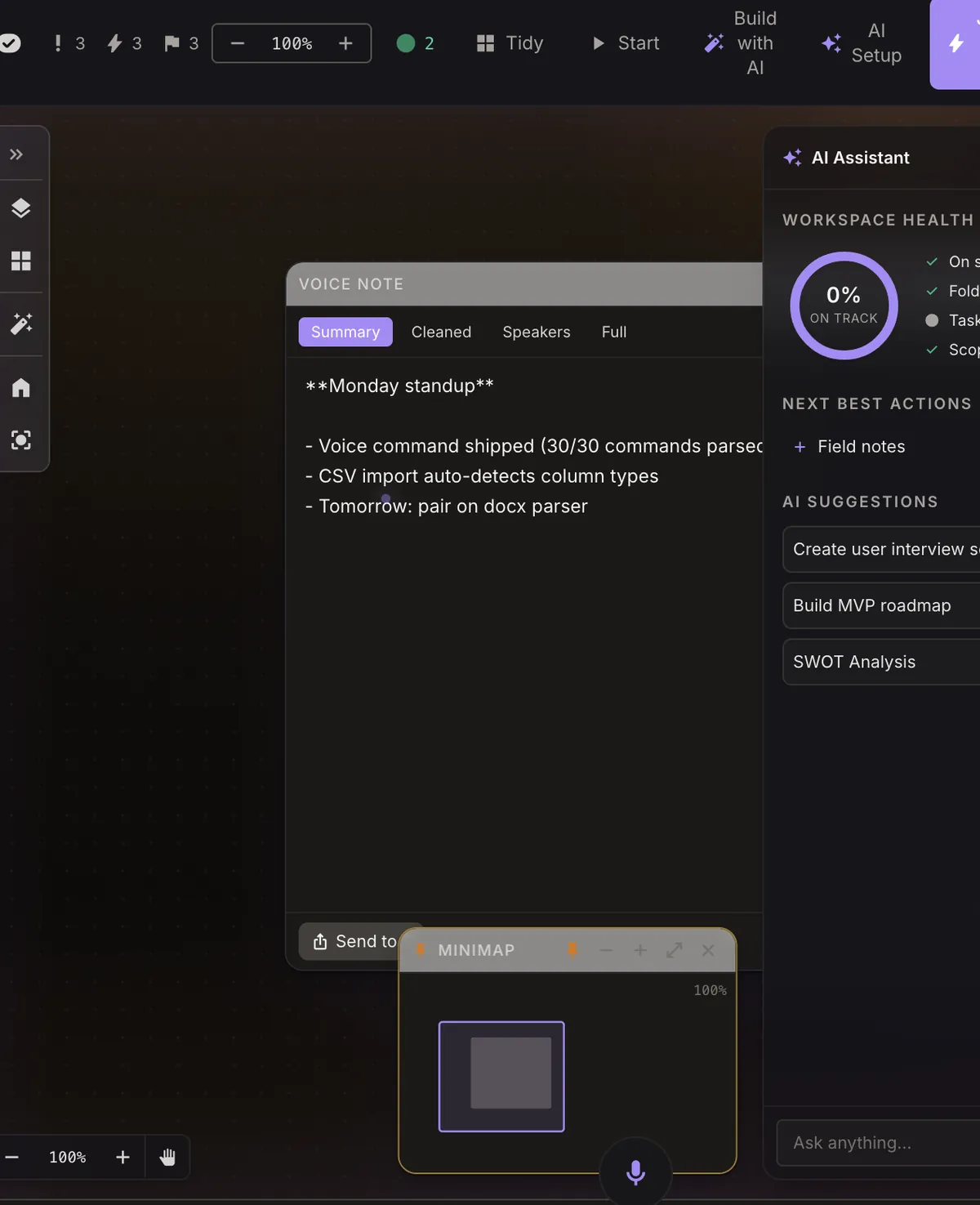
The full transcript is ready offline. The Summary, Cleaned and Speakers views use AI with your own Anthropic key, so they wait until you are back online.
Before you leave, three PlexiDesk-specific checks:
- Sign in. PlexiDesk can be opened three times before you create an account, and from the fourth launch it asks you to sign in or create one (Get started with PlexiDesk). If you have just installed it, create your account and sign in at home. If it asks while you are offline, try signing in anyway: when PlexiDesk can't reach its server, it offers Continue offline for now, so your desks stay open to you.
- Wait for Synced. On a computer you have just signed in on, the contents of your files download a few at a time, so give a large collection time to arrive and check that the status says Synced.
- Switch transcription to Local and let the model finish downloading, as above.
What waits for the connection to return
Some things need the internet by their nature, so they won't work until you are back online:
- Sync. Your changes wait on this computer and go out when you reconnect, so your other computers see them then.
- Sharing, chat, calls and meetings. These reach other people, so they need a connection.
- Mail. Sending mail and fetching new messages talk straight to your mail provider.
- AI requests. Plexii's answers, and AI features such as a voice note's Summary view, need to reach the AI provider over the internet, whether they run on PlexiDesk credits or on your own key.
- Cloud transcription, if you haven't switched to Local.
- Web pages in Browser widgets. A page needs the website to load.
This is where the "when I'm back online" list earns its keep. Rather than stopping to ask Plexii something, add it to the list on the desk you are working on and carry on.
Coming back online
When the connection returns, there is little to do:
- Let sync catch up. PlexiDesk sends your changes by itself. Glance at the status until it says Synced, especially before you switch to another computer.
- If it says Sync error, rest the pointer on the status to see the reason and check your connection. Your work is still saved on your computer, and PlexiDesk keeps trying.
- Work through your list. Send the emails, ask Plexii the questions you saved, and open the pages you needed.
- Tidy up the voice notes. Now that AI is reachable again, and if you have added your Anthropic key, switch a long voice note to Summary or Cleaned for the short version.
An offline day is also a good prompt to check your backups, because sync and backup are not the same thing. How to back up your work has a simple weekly routine, and Local-first, explained describes where your work lives. For the short version of what stays on your device and what sync does, see the Files, sync and privacy section of the product page. And if you are setting up a new computer for the trip, download PlexiDesk and sign in before you go.