How to back up your work: a simple routine for a local-first workspace
Sync is not a backup. The 3-2-1 rule in plain terms, three layers of recovery, and a weekly routine for work that lives on your own computer.
When your work lives on your own computer, you hold the copy. That is the point of a local-first workspace: your work is on your device first, it opens without a server, and it is yours. It also means the backup is yours to look after.
The good news is that a sound backup routine is short. This guide explains why sync doesn't count as a backup, puts the well-known 3-2-1 rule into plain terms, separates the three layers of recovery people tend to mix up, and gives you a weekly routine that takes about ten minutes. Then it shows what PlexiDesk keeps for you, and what to keep yourself.
Sync is not a backup
Sync keeps your computers in step. Change a document on your laptop and the change appears on your desktop. That is exactly what you want, until the change is a mistake. Delete the wrong section, overwrite a file, or lose work to a fault, and sync dutifully copies the mistake everywhere.
A backup is different. It is a separate copy, taken at a moment in time, that you can go back to. When something goes wrong today, a backup from last week still has the version from before.
PlexiDesk's own sync guide puts it in one line: "Sync keeps your computers in step; a backup gives you a copy you can restore." You want both.
The 3-2-1 rule, in plain terms
A common piece of backup advice is the 3-2-1 rule. A paper on the website of CISA, the US Cybersecurity and Infrastructure Security Agency, Data Backup Options (opens in a new tab), sets it out like this:
3 – Keep 3 copies of any important file: 1 primary and 2 backups.
2 – Keep the files on 2 different media types to protect against different types of hazards.
1 – Store 1 copy offsite (e.g., outside your home or business facility).
In plain terms:
- Three copies. The work you use every day, plus two backups. If one backup lets you down, you still have the other.
- Two kinds of storage. For example, your computer's own drive plus an external drive, or your computer plus a cloud storage service. Different kinds of storage are at risk from different things, which is why the rule asks for two.
- One somewhere else. A fire, a flood or a stolen bag takes everything in one place. Keep one copy outside your home or office, such as in cloud storage or on a drive you keep elsewhere.
The same paper makes the point behind the rule: "Saving just one backup file may not be enough to safeguard your information."
Three layers of recovery: undo, history and backups
When work goes missing, start by asking when it went, because each case has its own fix.
- Seconds or minutes ago. You deleted the wrong thing or moved something by accident. Undo is the fix, as long as the app is still open.
- Hours or days ago. You preferred how something looked yesterday, or want back a part you removed last week. History, where an app keeps earlier versions, is the fix.
- The computer itself. It stopped working, it was stolen, or you need something from weeks ago. Here you need a backup, stored somewhere else.
Knowing which layer you need saves a lot of panic. Undo and history live inside the app, often on the same computer as your work; a backup is the copy that survives losing the computer.
A weekly routine you will actually keep
A routine you skip is no routine. Make it short and put it in your calendar, for example on a Friday afternoon.
- Check your automatic backups ran. If your computer backs itself up to an external drive or a cloud service, open the backup tool and check the date of the last backup.
- Export a copy from each app that holds work. If an app has a backup or export button, as PlexiDesk does, use it, and save the file somewhere outside the app.
- Put one copy offsite. Copy the week's exports to cloud storage, or to a drive you keep somewhere other than your desk.
- Test a restore now and then. Once a month, open one file from a backup and check it is complete. A backup you have never opened is a hope, not a backup.
- Write down how to get it all back. Note where each backup lives and what you would need to restore it. Keep the note somewhere you can reach if your computer is gone, and keep passwords out of it.
What PlexiDesk keeps for you, and what to keep yourself
PlexiDesk covers the first two layers of recovery inside the app, and gives you the tools for the third.
Undo. Press ⌘ Z on a Mac or Ctrl Z on Windows to take back a change to your rooms, desks and widgets. Undo remembers your last 100 steps while PlexiDesk is open, and after a delete a message with an Undo button stays for about seven seconds (Undo and redo).
Desk history. Every desk keeps its 40 most recent saved states, and keeps them after you close the app. Click History on the desk's tool rail to put the desk back the way it was, or to branch a past state into a new desk while the original stays as it is. Before it restores, PlexiDesk saves the desk as it is now, so you can always come back. History covers the widgets on a desk and their text; a table's rows and an Office file's contents are kept in the table or the file itself (Restore or branch a desk from its history).
Trash. A room or desk you move to Trash waits there for 7 days, and Restore puts it back exactly as you left it (Archive, trash and restore rooms and desks).
Sync. While you are signed in, your work stays in step on every computer where you are signed in (Sync your work across devices). Useful, and a copy away from your desk, but as above, not a backup.
Backups and exports. In Settings, on the Data tab, the Backup & data section has the tools for the third layer:
- Export a backup saves a backup file of your workspace wherever you choose, and Restore from backup… brings one back. Before it restores, PlexiDesk backs up your current data first.
- Export my work (JSON) writes your workspace to one readable file you can keep or take elsewhere.
- PlexiDesk also takes an automatic snapshot on your computer when it starts, at most once every 12 hours, and holds the last seven. These snapshots are a handy safety net, but they sit on the same computer, so they don't count as your offsite copy.
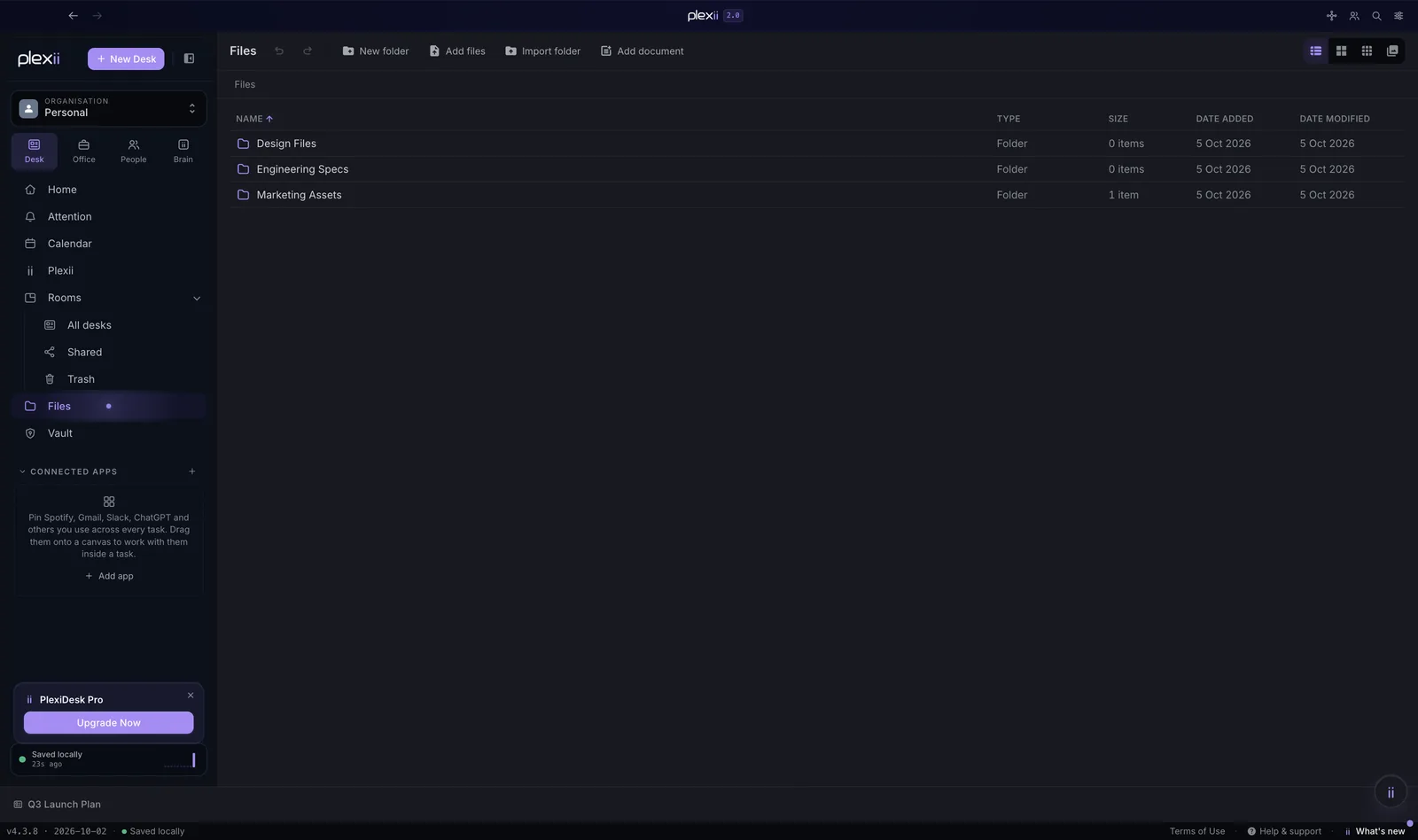
A backup file holds your workspace, not everything PlexiDesk keeps on your computer. Plan for these two:
- Your API keys. They stay on the computer where you added them, encrypted, and are not part of backups or exports. Add them again after restoring on a new computer.
- The files you keep in Files. They are stored as separate files on your computer, not inside the backup file. While you are signed in they sync to your account; for anything you can't afford to lose, keep the original file in your regular backup as well.
Putting it together, a 3-2-1 set-up for a PlexiDesk user looks like this: your workspace on your computer is copy one; a weekly exported backup on an external drive is copy two; the same file copied to cloud storage or a drive kept elsewhere is copy three. For the files you keep in Files, the file that Export my work (JSON) writes names the folder on your computer where they are stored, so you can copy that folder to the same two places.
Ten minutes on a Friday, and your work can survive a bad day. For the bigger picture of where your work lives, read Local-first, explained and the Files, sync and privacy section of the product page. And if you travel with your laptop, Working offline has a checklist for the day before you go.