Too many tabs open? A calmer way to keep your research
Tabs pile up because each one is a reminder, a bookmark and a workspace at once. Separate those jobs and keep research with the work it belongs to.
If you have more browser tabs open than you can see, you are not disorganised. Each of those tabs is doing three jobs at once, and closing it feels like losing all three. The way out is not to try harder at closing tabs. It is to give each of those jobs a better home, so you can close the tab without losing anything.
This guide explains why tabs pile up, gives you a five-minute triage you can run today, and shows where to keep what you find so it is still there next week.
Why the tabs pile up
Look at any tab you have been keeping open for a while and ask what it is for. Usually it is one or more of these:
- A reminder. "I need to deal with this": a form to fill in, an article to reply to, something to buy.
- A bookmark. "I might need this again": a reference page, a useful source, a price you want to compare.
- A workspace. "I am using this right now": the document you're editing, the dashboard you're watching.
Tabs are good workspaces and poor reminders and bookmarks. A reminder works only when you notice it, and nobody notices the twenty-third tab. A bookmark is only useful if you can find it again, and a row of identical icons doesn't help with that. Meanwhile the tabs for one piece of work are mixed in with the tabs for every other piece, so moving between them is its own small context switch.
Underneath is a familiar mismatch. Your browser arranges pages in the order you opened them, while your work is arranged by task. The fix is to keep each page with the task it belongs to, which is the idea behind giving every task its own desk.
A five-minute tab triage
Set a timer for five minutes and go through your tabs from left to right. Make one decision per tab and don't stop to read.
- Finished with it? Close it. If you'd ever need it again, your browser's history will usually still have it.
- Reference for a piece of work? File it with that work (see the next section), then close the tab.
- Really a task? Write the task down with a next action and the link, then close the tab (see the last section).
- Using it today? Keep it open. Aim for a handful, the ones you are actively working in.
- Not sure? Put it in one "sort later" list with today's date. If you haven't opened it in a fortnight, let it go.
Do the triage once properly, then for a minute at the end of each day. The goal isn't zero tabs. It is a browser that holds only what you're using, and somewhere else that holds everything you've kept.
File research with the work it belongs to
Bookmarks sorted by topic tend to become a second pile of tabs, just better hidden. Filing by project works better: everything you found for the proposal sits with the proposal. A few habits make it stick:
- Write one line about why you kept it. "Supplier price list, checked in October" is far more useful later than the page title.
- Keep the source details as you go. Title, address and the date you looked at it. If you're a student writing an essay, note the author and page number too, because tracing a source later is slow. Our guide to organising research for an essay has a method for this.
- Store the link, not a copy, unless the page might change. If what it says matters, such as terms or a price, save a PDF of it with the date in the name.
PlexiDesk is built for this kind of filing. Each piece of work gets a desk, and pages can live on it:
- A Browser widget is a working web browser on a desk. It remembers the page you were on, so it opens where you left off the next time you come back to the desk. See Browser widget.
- Drag a tab straight onto a desk. Drag a tab or a link from your web browser onto a desk in PlexiDesk and it becomes a Browser widget open at that page, right where you let go. That turns the triage into a series of drags: each keeper tab goes onto the desk it belongs to, then you close it in your browser. See Drop files, links and apps onto a desk.
- Send a page from PlexiDesk's own browser. The Browser app in PlexiiOffice is for looking things up without a desk. When a page you find there turns out to matter, click Send to desk and pick a desk, and the page goes onto it as a Browser widget.
- Keep a link as a card. When you only need to get back to a page rather than use it on the desk, a File or link widget holds a single link as a card with the site's icon, name and address. Click it to open the page in your usual web browser.
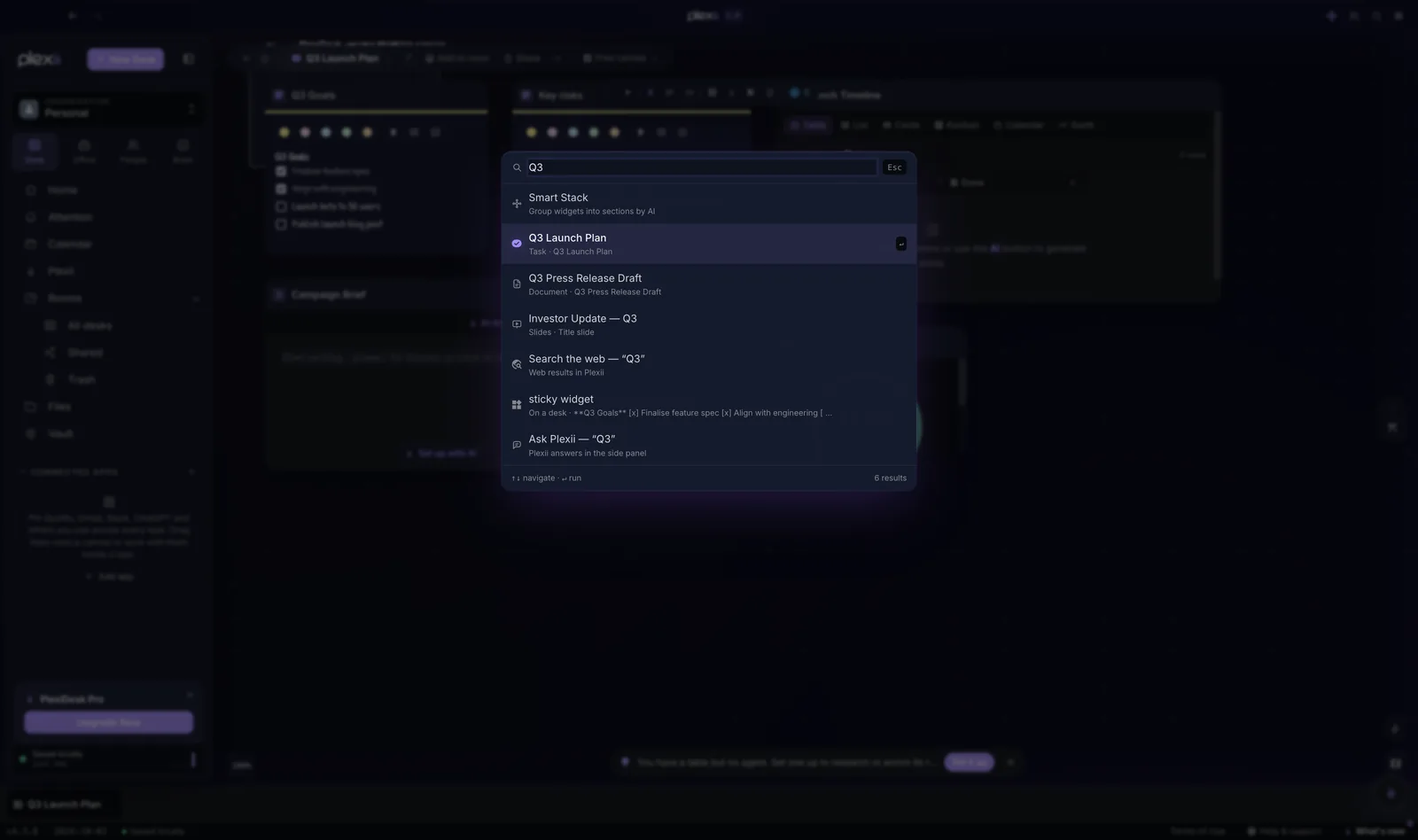
Add a sticky or a note beside each page with that one line about why you kept it. The command palette, ⌘ K on a Mac or Ctrl K on Windows, searches the text of notes and stickies and takes you to the desk they're on.
Keep the sites you use every day one click away
Some tabs aren't research at all. They are tools: a project tracker, a team inbox, an admin page you check every morning. They stay open all day because signing in again is a chore, and they take up space in every window.
Give those a fixed place instead of a permanent tab. In your browser, that might be a short folder of daily sites on the bookmarks bar. In PlexiDesk, you can pin a site to Connected Apps: click pin to apps at the top right of a Browser widget showing the site. From then on, every Browser widget for that site shares one sign-in, and PlexiDesk keeps it between launches for as long as the site itself keeps you signed in. While a desk is open, drag the app from Connected Apps in the side menu onto the desk and it opens there, already signed in. Pin the site before you sign in to it, so the sign-in is saved with the app. See Keep a site signed in on your desks.
One desk for each piece of research
Research is easier to manage when each question has its own home: the sources, your notes on them and the questions still open, all together. When the question is answered, the whole lot can be closed and put away as one, rather than leaving a trail of tabs behind it.
A simple layout works for most research:
- Sources: the pages and files you are working from, each with its one line.
- Findings: what you have learnt so far, in your own words.
- Open questions: what you still need to find out.
PlexiDesk's Research starter template sets up exactly that on a new desk: a browser, a "Findings" page, an "Open questions" sticky note and a "Sources" Markdown widget. You can add as many Browser widgets to a desk as you need, and ordinary Browser widgets share their sign-ins, so signing in to a site in one signs you in to it in the others. For students, our page for university students shows how one desk per assignment keeps your research next to the draft it informs. When the research is finished, our system for organising project files, notes and links covers how to put it away without losing it.
When a tab is really a task
The tabs that hang around longest are often tasks in disguise: the form to fill in, the invoice to pay, the article you promised to comment on. Keeping the tab open is a way of not forgetting, but it doesn't say what to do or by when.
Turn each one into a proper task: a verb, the thing, a date and the link. "Reply to Sam's comments on the draft by Thursday, link: ..." can go on whatever list you already trust, and then the tab can close.
In PlexiDesk, a page on a desk can become a task without retyping anything. Right-click the Browser widget's title bar and choose Advanced, then Make this a Desk.... Leave Add it on To this desk to add a task, named after the widget, to the desk you're on, or choose As a new desk if it deserves a canvas of its own. If you have Attention turned on in Settings, you can also right-click inside the page and choose Add to Attention…: it starts an item with the page's address kept on it, and you confirm the item before it is filed.
Your tabs then go back to being what they are good at: the handful of pages you are working in right now. Everything else has a home, filed with the work it belongs to. For the bigger picture of how a desk keeps each task's pages, notes and files together, and why we think that matters, read One desk per task: why we built Plexii.