A simple system for organising project files, notes and links
One home per project, two levels of folders and a habit for finishing: a system for project files, notes and links that works with any tools.
A simple system for organising project material has five parts: give every project one home, keep your folders to two levels, name things the way you'll search for them, reuse a set-up for work you repeat, and archive a project properly when it ends. It works with folders on your computer, a notes app or a workspace app, and it holds up because there is very little of it to remember.
This guide walks through each part, with what it looks like in practice. Most sections end with a short note on how the same idea works in PlexiDesk, if you use it.
Why project material ends up everywhere
Every tool saves things in its own place. Attachments stay in email. Notes go into a notes app. Links go into bookmarks or stay open as tabs. Files land in Downloads, or on the desktop, or in a shared drive someone else set up. Nobody ever decided where the project lives, so it lives everywhere.
The cost shows up when you come back to the work. Before you can do anything, you have to remember which app holds which part, and every one of those hunts is a small context switch. The fix is not a cleverer folder tree. It's deciding, once, that each project has one home.
That idea is the heart of organising work by task rather than by app. Our post One desk per task: why we built Plexii explains why it matters; this one is the practical how-to.
Give every project one home
For each project, pick one place you would look first. Everything for the project either lives there or is linked from there. If a file has to live somewhere else, such as a client's shared drive or a finance system, put a link to it in the home with a line saying what it is.
A useful home holds:
- The brief: what the project is for and what "done" looks like.
- The current status and the next step, kept up to date in a line or two.
- The working files, or links to them.
- Notes and decisions, with dates, so you can see later why something changed.
- Links and references you found along the way.
- The people involved, and how to reach them.
A project is something with an end: a launch, a renovation, a client engagement, an essay. Ongoing responsibilities, such as finance, a long-term client or your own development, are areas, which hold projects. Keeping the two apart is what makes the next section work.
In PlexiDesk, the home is a desk: one canvas for one piece of work, holding its notes, files, tables, browser windows and tools side by side. A desk also has a status (To do, In progress, Done or Parked), so you can see at a glance which projects are moving. To link from one home to another, type @ in a sticky, note or card and pick a desk, room, widget, document or table, or a person when you're signed in and working in an organisation workspace. The link appears as a chip, and clicking it takes you there.
Areas and projects: two levels are enough
Deep folder trees fail in a predictable way. Every extra level is one more decision when you file something and one more guess when you look for it. For most work, two levels are enough: areas at the top, projects inside them.
As an example, a freelance designer called Maya might have one area for each regular client plus one for her own business admin. Inside each client area sits a folder for each project, such as a brochure, a website refresh or a set of event signs. Inside a project, she keeps things flat: at most a "Working", a "Final" and a "Reference" folder, and often none at all.
A few rules keep the structure honest:
- New project, new home. Don't reuse last year's folder for this year's work. Copy what you need into a new one.
- If a project fits in two areas, pick one and link from the other.
- Review the top level once a quarter. Areas that have gone quiet can be archived.
In PlexiDesk, the two levels are rooms and desks. A room holds the desks that belong together, one for each client, area or part of your life, and a desk can also sit at the top level without a room. Rooms can hold other rooms, but two levels are usually enough. How many rooms you can keep depends on your plan, so check the pricing page if you have a lot of areas. To see everything at once, All rooms and All desks list your work in five views (Gallery, List, Board, Table and Timeline), with search across names and notes, grouping by status or room, and filters for To do, In progress, Done and Parked.
Name things so you can find them later
Names are how you find things in a year's time, so name them for the search you'll do then.
- Lead with the thing, not the type. "Spring menu brief" beats "Brief (final) v2".
- Write dates year first, like 2026-10-11, so files sort in order.
- Avoid "final", "new" and "latest". They stop being true. Use a date or a version number instead.
- Use one word for one thing. If it's a "proposal" in one place, don't call it a "quote" somewhere else.
- Add the client or project to a file's name when it leaves its home, such as an attachment you send, so it still makes sense in someone else's inbox.
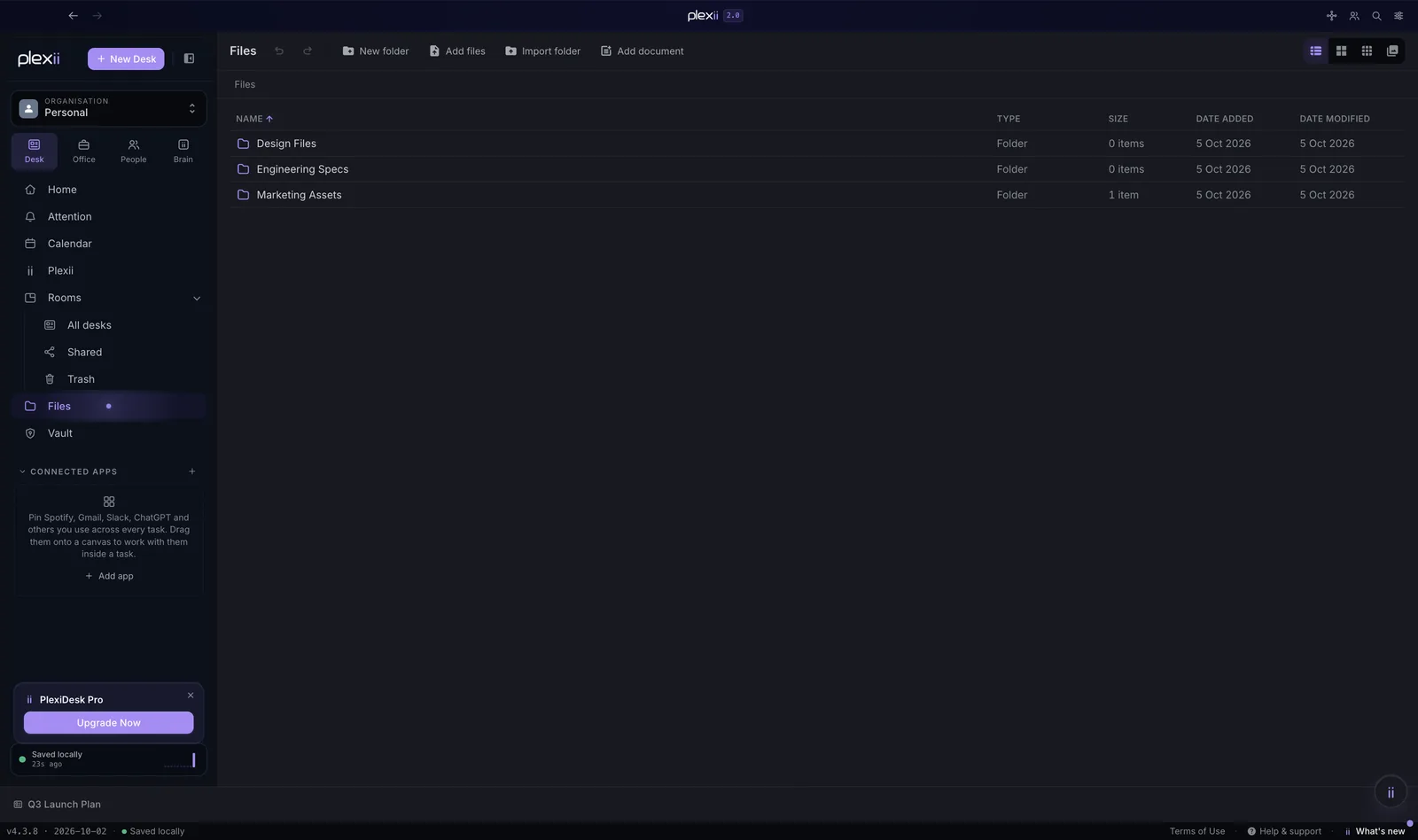
In PlexiDesk, give each desk a name you'd type into a search box, and put a few words in its notes: search on All rooms and All desks matches names and notes as you type. The command palette, ⌘ K on a Mac or Ctrl K on Windows, also looks inside the text on your desks, such as stickies and notes, and takes you to the desk where it found a match.
Reuse the set-up for work you repeat
If you run the same kind of project more than once, such as a monthly report, a client onboarding or a product launch, don't start from a blank page. Keep a starting set-up: the folders, a brief with the headings you always need and a checklist of the steps people forget.
A good template comes from a real project, not a guess. When a project goes well, copy its structure, clear out the specifics and save it as the template for next time. When you notice something missing halfway through the next one, add it to the template straight away, while you remember.
PlexiDesk comes with six desk templates to start from: Daily Focus, Project Hub, Research, Writing, Weekly Plan and Brainstorm. Project Hub, for example, puts a "Brief" page, "Goals" and "Risks / blockers" sticky notes and a "Decisions log" note on a new desk. You can save any desk as a template of your own with Save as template in the desk's quick actions, choosing which widgets to include. A template keeps the text in its notes and pages, so clear out last month's details or untick those widgets before you save.
Finish a project properly: archive, don't delete
Projects rarely end with a clear moment. They taper off, and their files stay where they were, mixed in with live work. A short finishing routine fixes that:
- Put the final versions where they belong, clearly named.
- Write a closing note: what was delivered, the decisions that mattered and anything you'd do differently.
- Move any loose ends to where your live tasks are, so they don't stay buried in a finished project.
- Save the set-up as a template if you'll do this kind of work again.
- Archive the project.
Archive rather than delete. An archived project is out of sight but kept, and easy to bring back, and it's the record you'll want when a similar project comes round or a client asks a question a year later. Keep deleting for things you'll truly never need.
In PlexiDesk, mark the desk Done first. If the desk has any widgets on it, PlexiDesk offers to save it as a template at that moment. Then archive the room or desk: archived items leave your lists but stay in your workspace, and the Archived button on All rooms or All desks shows them, ready to unarchive. Archiving a room hides the room, but its desks still show in All desks, so archive them too if you want them out of sight. If you do delete something, Move to Trash keeps it for 7 days so you can restore it.
Start with your next project
You don't need to reorganise everything you have. Start with the next project that comes in: give it one home, file it under the right area, name it well, and archive it when it's done. After two or three projects the system should start to feel normal, and your old material can be moved across as you need it.
If your projects are clients, One workspace per client shows how to keep each client's people, mail and files together. To see how a desk gives each project one home for your own kind of work, build a desk for your role in the interactive demo.