Organisation settings and switching workspaces
Switch between your Personal workspace and your organisations, see what changes when you do, and find your organisation in Settings.
PlexiDesk keeps your own work in your Personal workspace. When you belong to an organisation, it has a workspace of its own, and you choose which one you are working in with the workspace switcher. Settings has an Organisation tab that shows the organisation you belong to and takes you to its settings.
Before you start
- Personal is always there. It holds the work on your computer and is available whether or not you are signed in.
- Organisations need an account. Your organisations come from your PlexiDesk account, so they appear only while you are signed in. See Create an account and sign in.
- Plans. Switching between workspaces works on every plan. Keeping several organisations, and the Organisation page where you manage one, are part of the Team plan. See What each plan includes.
Switch workspace
The workspace switcher sits at the top of the menu on the left, just below New desk, in every area. It shows the name of the workspace you are in.
- Click the workspace switcher.
- Under Workspace, click Personal or the organisation you want to work in. A tick marks the one you are in.
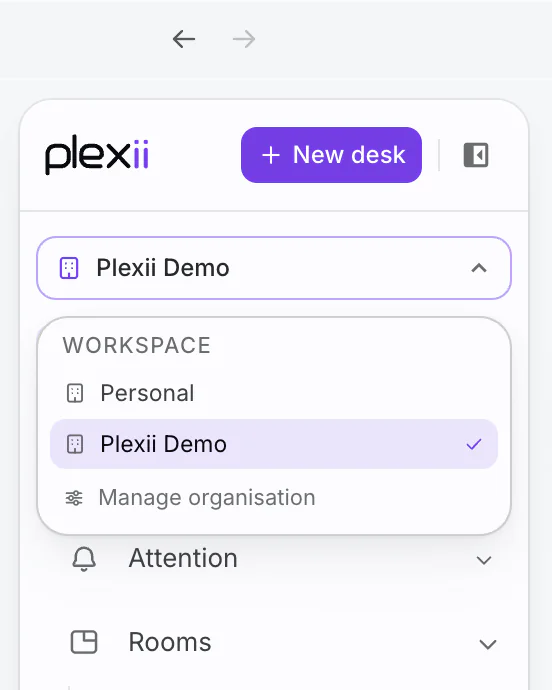
Press Esc or click anywhere else to close the list without switching.
What changes when you switch
PlexiDesk takes you to your Home dashboard and reloads everything for the workspace you chose:
- Rooms and desks. You see the rooms and desks in this workspace only.
- Documents and Files. You see this workspace's documents and files.
- Connected apps. The apps connected in this workspace.
- Mail. Each workspace has its own mail account on this computer, so connect a mailbox in each workspace where you want mail. See Connect your email account.
- Features. Some features depend on the workspace's plan and on choices its administrators make, so an app can be available in one workspace and greyed out in another.
PlexiDesk remembers which workspace you were in, so it opens there next time.
Work in an organisation's workspace
Work you create in an organisation's workspace belongs to the organisation and syncs to it, where the people it is shared with can see it. Documents you create there can be edited by everyone in the organisation. See Sync your work across devices and Work together in real time.
To move something you made in your Personal workspace into an organisation, see Share with your team or a group.
See your organisation in Settings
- Click the gear at the right-hand end of the header to open Settings.
- Click the Organisation tab.
The tab shows:
- If you belong to an organisation: its name, how many members it has, and your role, such as Owner, Admin or Member. If you belong to more than one, it shows the one that was created first.
- If you do not: You are not part of an organisation yet.
Click Manage organisation to go to the Organisation page, where members, roles, offices and profiles are managed. You can also click Manage organisation at the bottom of the workspace switcher. See Set up and manage your organisation.
Tips
- Glance at the switcher before you start something new. New rooms, desks and documents go into the workspace you are in.
- Keep personal work in Personal. Anything you make in an organisation's workspace belongs to the organisation.
- Use the People area to see who is in an organisation. See The People area.
Common questions
I was invited to an organisation, but it is not in the switcher. Check that you are signed in with the email address the invitation was sent to. An invitation to an address without a PlexiDesk account is waiting for you when you sign up with that address. See Create an account and sign in.
An organisation disappeared from the switcher. You may have been removed from it, or have left it. If the organisation you were working in is no longer one you belong to, PlexiDesk switches you back to Personal.
Where did my desks go? You are probably in a different workspace. Click the workspace switcher and choose the workspace you made them in.
The Organisation tab says "Could not load your organisation right now." PlexiDesk could not reach your account just now. Check your connection, then close Settings and open it again.
How do I create an organisation? On the Team plan, create one on the Organisation page. See Set up and manage your organisation.
Related tasks
Was this helpful?
Still need help? Contact support at [email protected].